
Designing menus for generative models
How to create user interfaces for indecipherable tool names

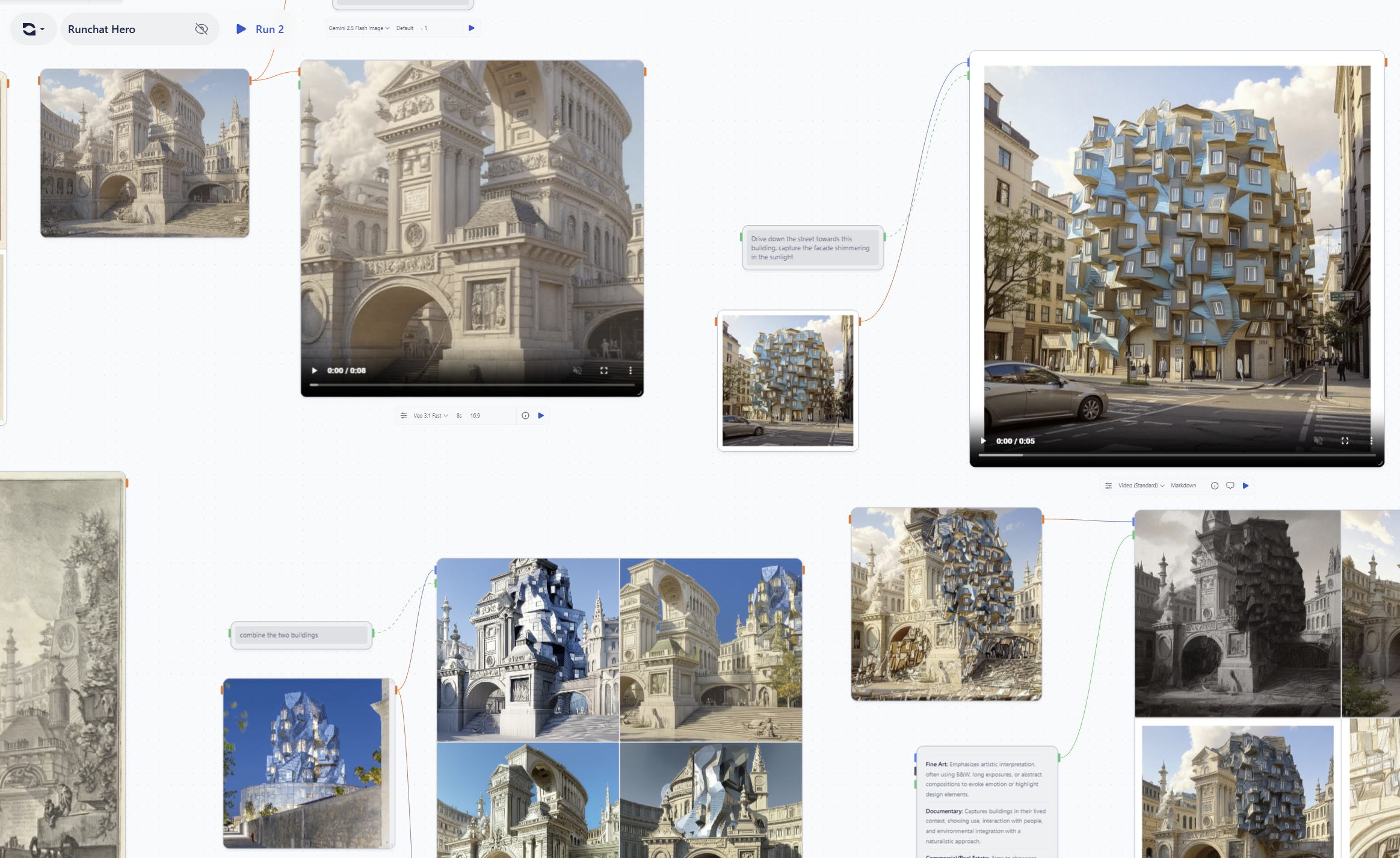
Runchat is a visual canvas for building creative workflows with generative models. For a product that fundamentally is about chaining these different models together to do creative work, helping people choose which model to use when is surprisingly difficult. The AI labs have made a habit of using nonsensical naming and versioning systems for their model releases. Models often use literal code names (e.g. NanoBanana), seemingly arbitrary semantic versioning and a litany of tags to identify different “versions”: Pro, Max, Dev, Flash, Turbo etc. Imagine using a sadistic version of photoshop where instead of having a single brush tool, you had to choose from a list that included new options like Brush Turbo, Brush 3.5 or NanoBrush every couple of weeks. What a nightmare.
One of the reasons to use Runchat is we maintain a curated collection of models that sit on the pareto frontier of price and performance. We pay attention to the fire hose of releases from the AI labs and carefully prune our offering to supersede older models with fancy new ones that enable new use cases, are faster and cheaper or are more reliable. This means that while the overall number of models we support in Runchat is fairly constant, the names of these models still change over time. This leaves us with the challenge of communicating the purpose of models as they are added, and introduces the frustration of models disappearing just as you become familiar with them. Over the year or so of building Runchat we’ve spent a lot of time thinking about these problems, and are getting closer to designing a user interface that provides the right balance of abstraction, automation and optionality for our users.
Early 2025: Fast / Quality
Our first instinct was to abstract the model names away from end users and only ever provide a Fast or Quality option for every scenario where a generative model might be used. As models inevitably changed, we would update which model was used for these options under the hood and users wouldn’t be any the wiser. This approach gave us a lot of flexibility with our UI design: we could give users a slider or toggle to switch between the models, or automatically choose based on the model configuration.
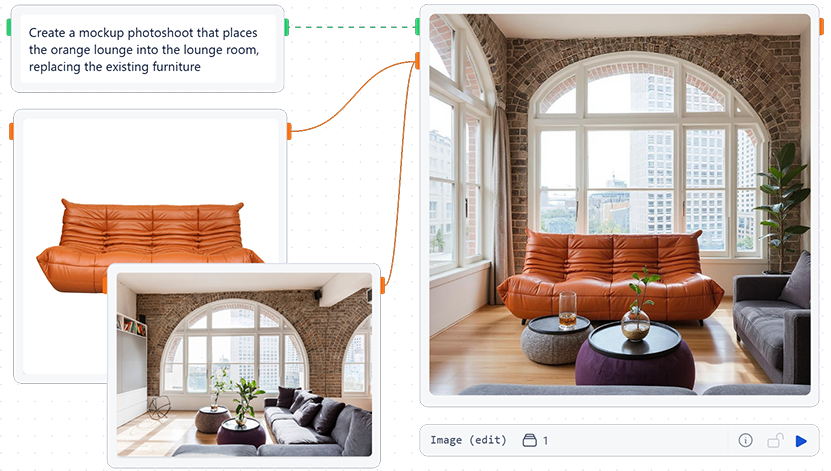
Runchat settings bar and model names in early 2025
However, this abstraction quickly needed to absorb more and more configuration. What about image editing? Do we need a Fast and Quality option for that? Or image inpainting? All of sudden we had Inpaint (Fast) and Inpaint (Quality), Image Edit (Fast) and Image Edit (Quality) and so on. But the real killer with this abstraction is that the underlying behaviour of the tool would change while the tool name stayed the same. The notion of “quality” or “success” of a model is somewhat dependant on the context in which it is used. As 2025 rolled on, models were released that were better for 75% of tasks and worse for 25%, and we would integrate them and change what Image Edit (Fast) or Image Edit (Quality) was actually doing under the hood. For most users, this resulted in a magical improvement, but for some, the exact same tool suddenly got worse without them changing anything. Furthermore, users could install additional models if they wanted to from Fal.ai or OpenRouter, and suddenly our model menus consisted of a mix of both AI lab names and our own abstractions. It was too confusing.
Mid 2025: Nested Menus and Presets
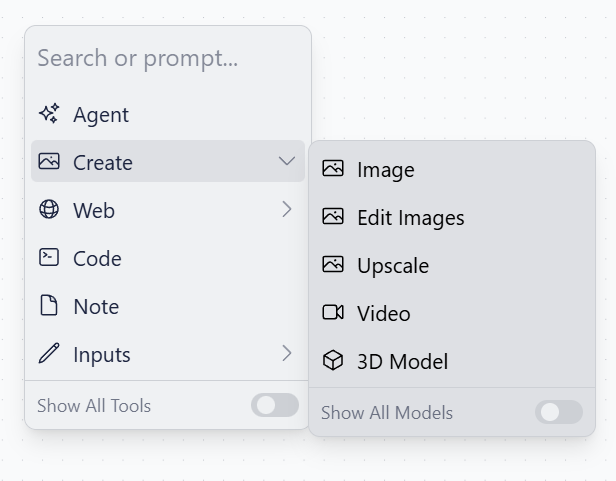
The solution to this problem was to abstract model names within our primary menu system, and then allow users to browse all models when configuring a node. This aimed to solve the problem of introducing new users to Runchat by allowing them to browse by what a model actually did (e.g. editing images or creating 3d meshes). Selecting one of these options would effectively choose a preset model that was best for that specific task, and this would change over time. However, on the node, the user would see the actual model being used and could configure this as required.
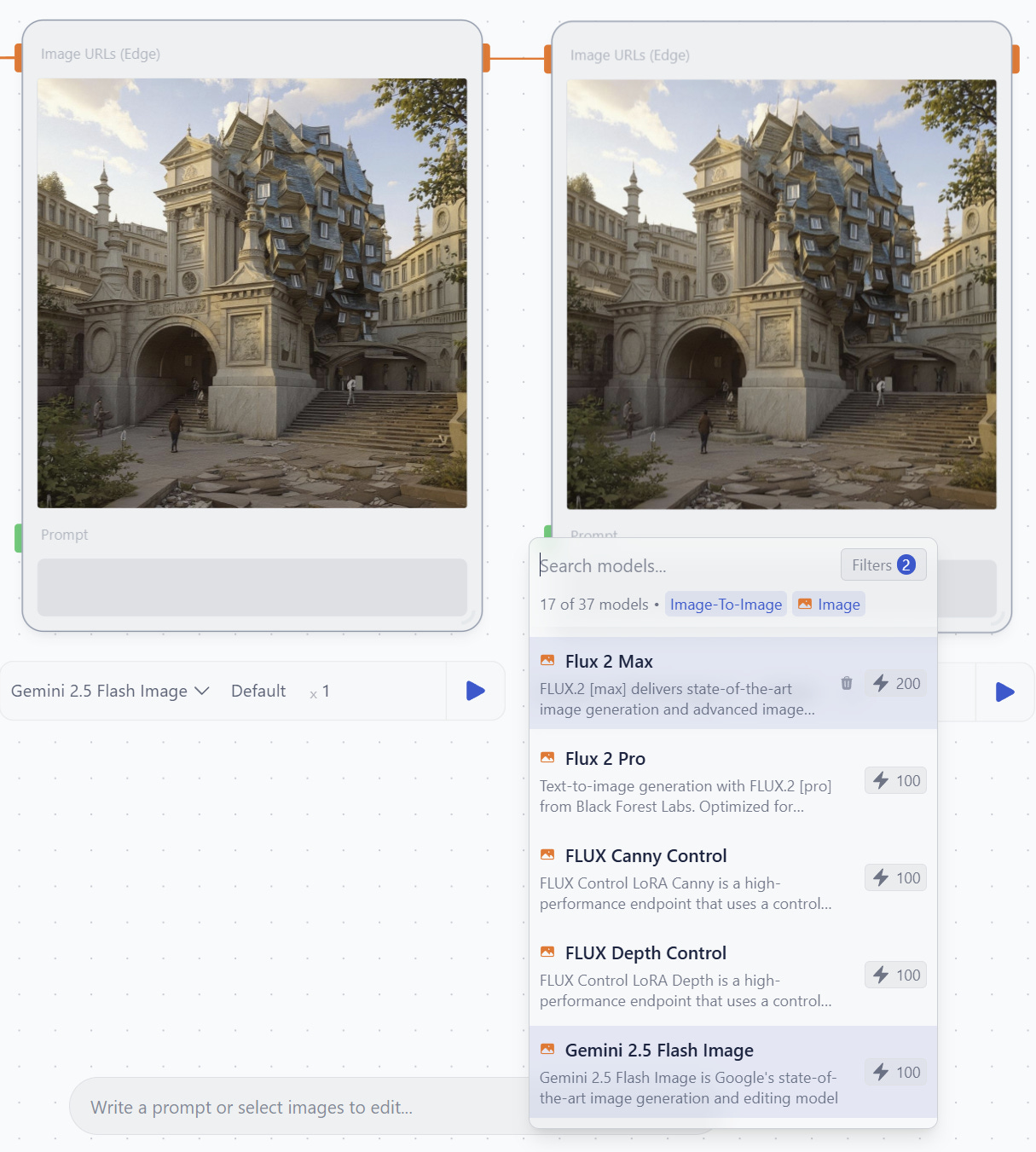
Swapping a model for the edit image node
This seemed like a reasonable balance between discoverability: explaining what models do, and optionality: being able to choose the right model for your specific task. However the nested list UI required user’s to menu dive even for common tasks like editing images, and hid more advanced features behind toggles to avoid clutter. Furthermore, if a user did want to switch generative models they often found the model selection dropdown seriously intimidating. Instead of plain english descriptions of what models did, they suddenly faced a list of AI lab names with a lot of jargon with very little explanation. This was a major issue because we would always provide fast, cheap options in our defaults and these didn’t always produce quality results. A better model was just a click away, but we couldn’t easily convey this in our UI.
Late 2025: Suggestions
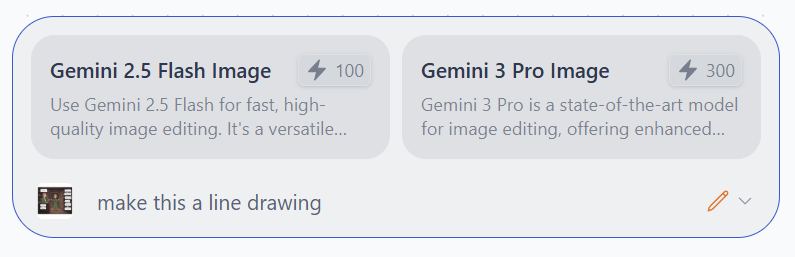
When Google released Gemini Flash Lite in late 2025 this opened the door to using an LLM to try to suggest models that would be appropriate for a user request. It was fast enough to generate responses in <2s, and reliable enough to take a long context with several examples and output JSON that we could use to build our UI. We added a permanent prompt bar to the bottom of the editor that would try to match the user’s prompt against some examples and choose two model options for quick or quality results. It was also provided with the context of selected nodes, and so could suggest image editing models more frequently if images were selected.
The prompt bar suggestions solved the problem of model discoverability for new users, as well as removing the need to menu dive to create nodes. For new users, they could simply write what they wanted to do, wait for the suggestion then choose how many credits they wanted to spend. Great! But the issue here is we introduced yet another UI element for selecting models. We now had our nested menu with abstracted names, our model picker on nodes with ai lab names, and our suggestion UI with generated names and descriptions.
2026 (now): Frequent vs Infrequent UI
We’ve recently been trying to consolidate these three menus into a single UI element to reduce confusion around how to create nodes and configure models. The goal is to make the tool selection UI respond to the experience of the person using it. If you’re inexperienced with Runchat, it should suggest models and nodes for you and provide tooltips to explain what they do:
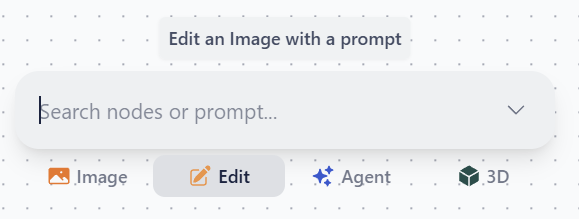
A first-time view of the new menu
We are experimenting with showing a list of frequently used nodes and presets at the bottom of the search / prompt bar. These initialize to the four things people tend to use Runchat for, then show whatever you last used. If you need something else, you can search to filter models, tools and nodes. When you create a new node type, this gets added to the quick select list:
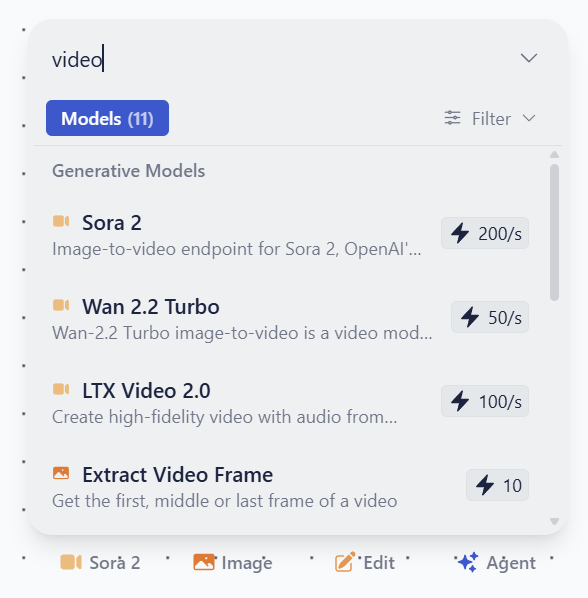
Searching for a different model and then having this added to the quick select list
If you search for something that doesn’t match any model or tool names, then we run our prediction to try and find a suitable model for you. This means we can use this UI as a demo on our home page - you don’t need to know anything about Runchat to start using powerful models:
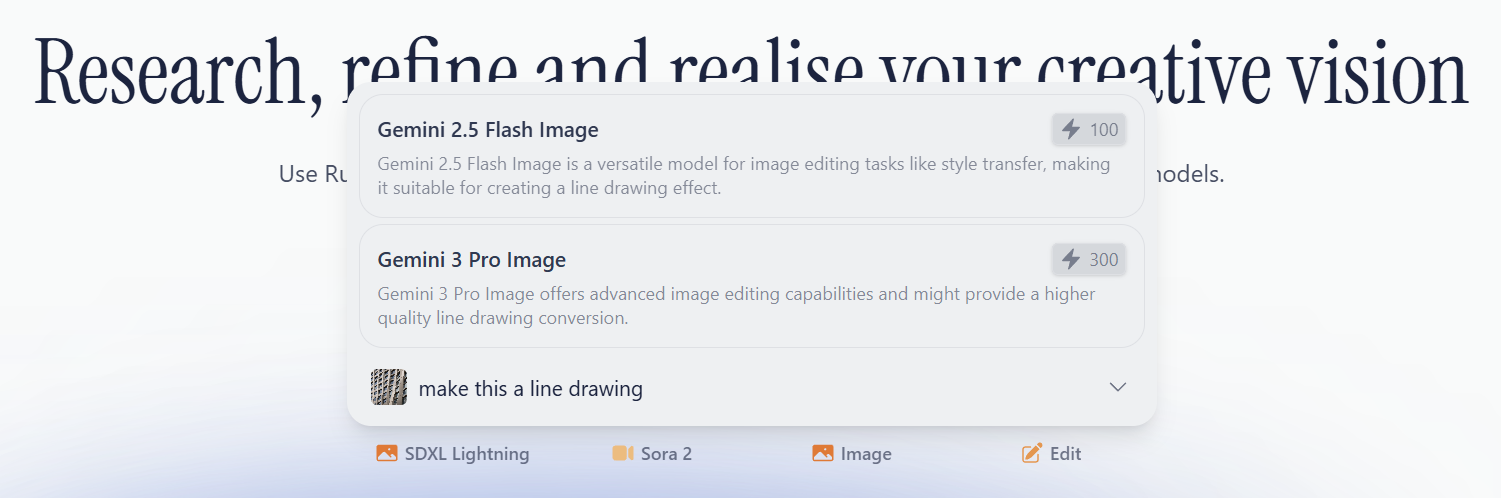
The homepage demo
For more experienced or inquisitive users, you might still want to browse all models and tools. We consider this an infrequent scenario since hopefully most of the time the quick select options will be what you want. But if this isn’t the case, then all models, tools and nodes are browsable and searchable within a tabbed menu. This helps us hide the complexity of Runchat while still keeping functionality accessible:
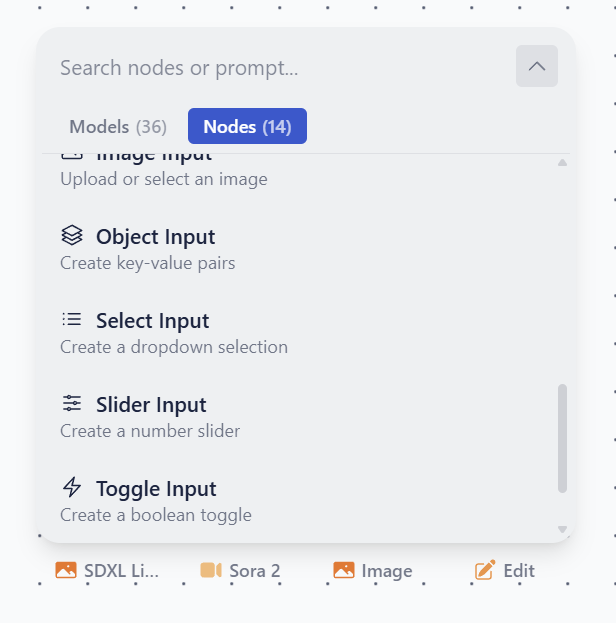
Viewing all nodes
We’ve had to make a couple of trade offs with this new approach to the UI. Because we’re trying to keep the quick select list limited to just four options, this means that users do need to search or menu dive for things that aren’t immediately there and this might be more intimidating than the previous nested list menu. Very new users now see a list of models when first typing into the prompt bar before it runs a prediction, which might obfuscate the fact that the prediction functionality exists at all. But we’re excited to keep exploring UI ideas for how to clearly communicate what new generative models do to inexperienced users, and make our UI as responsive to the context of a specific workflow as possible. Going forward, we want to enrich this context as much as possible and suggest not only models but also tools, templates and prompts.
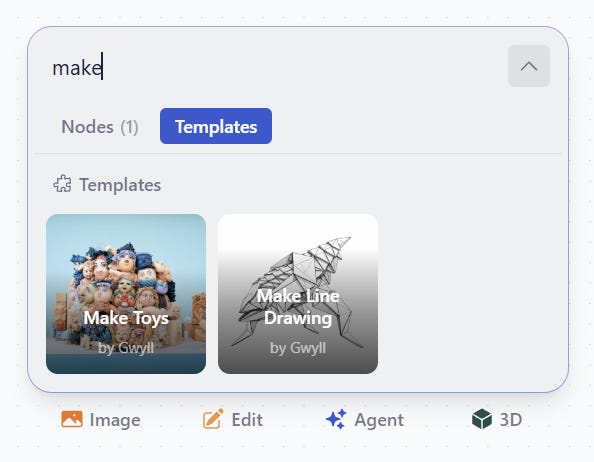
Next steps: searching galleries and templates